
RAPID RESOLUTION & CARE

IPTV Not Playing?

When streams buffer, playback stalls, or authentication fails, isolate the issue before altering your device settings. These simple checks separate network, application, and single-channel feed anomalies.

Open WhatsApp Support +212 725 348 669

START HERE

IPTV Diagnostics: Three Initial Checks.

Perform one change at a time and retry playback. This systematically identifies what resolves the issue.

  1. 01

    Check Internet Connection

    Launch another high-speed streaming service on the same hardware. If other video apps also hesitate, inspect your Wi-Fi signal or Ethernet cable and restart your router to clear congested channels.

  2. 02

    Relaunch the Application

    Force quit your media player app completely and reopen it. If playback does not restore, reboot your television or set-top streaming box to flush cached video decoding memory.

  3. 03

    Isolate Specific Feeds

    Switch to two other channels in different categories. Note whether playback stalls across the entire lineup or is confined to a single sporting event, and note the exact time observed.

COMMON SYMPTOMS

Buffering, Black Screen, or Login Failed?

Avoid resetting your device hardware or deleting subscription playlists before attempting these lighter interventions.

Stream buffers or reloads continuously.

Pause heavy downloads, game updates, or torrents on the same home network. Connect an Ethernet cable directly if supported by your TV, or reposition your streaming stick closer to your router. If your player allows buffer sizing, increase the buffer cache to 3-5 seconds. Consistent packet flow is far more important than raw peak speed.

Audio plays clearly, but the screen is black.

First test another channel to verify video codecs. Restart the application. In your player settings, try switching the video decoder between Hardware Acceleration, Software Decoding, or VLC/ExoPlayer engines. On streaming boxes, ensure your HDMI cable supports HDCP 2.2 and 4K 60Hz.

Video displays smoothly, but audio is silent.

Inspect TV and app volume controls and ensure mute is inactive. Verify that audio is not inadvertently routing to disconnected Bluetooth headphones or a soundbar in another room. In player audio settings, select an alternative audio track or switch from Dolby 5.1 passthrough to Stereo PCM.

Authentication failed or playlist will not download.

Check the exact spelling of your server URL, username, and password, watching carefully for trailing spaces. Review our M3U and Xtream setup guide to confirm required fields. Confirm your subscription period is active. Never paste passwords in public forums or unverified apps.

Electronic Program Guide (EPG) displays incorrect times.

Check your hardware clock, system date, and timezone settings. Perform a manual 'Refresh EPG' within your player application settings. Guide completeness and schedule depth depend on regional broadcast timing data.

Playback stops abruptly when launching another screen.

Each standard plan includes 1 dedicated simultaneous streaming line. Disconnect playback on the first television screen before initiating streams on your second display. Contact 24/7 WhatsApp support to upgrade to multi-screen household passes.

How do I renew my active streaming subscription?

Subscriptions never auto-renew or charge credit cards without explicit approval. Review our plans and pricing matrix and message us on WhatsApp before your pass expires with your desired tier. See our order walkthrough for details.

Need assistance configuring M3U or Xtream API credentials?

Share your device model and player name with our WhatsApp agents along with where you are stuck. M3U utilizes a playlist URL, whereas Xtream requires server address, username, and password. Keep private passwords safe—our agents can verify routing without them.

DETAILS TO INCLUDE

Accurate Information Expedites Live Assistance.

Send our WhatsApp technicians these parameters so we can inspect your server route and line status immediately.

  • Device & Application

    Exact hardware model (e.g., Fire TV 4K Max, Apple TV 4K, Samsung Tizen), player name (TiviMate, Smarters Pro), and whether connected over Wi-Fi or wired Ethernet.

  • Glitch & Timestamp

    What specifically occurs when playback halts, and when the issue started. Note error codes and whether the disruption affects one channel or the whole lineup.

  • Troubleshooting Already Done

    Briefly describe what you have already tested (restarted router, cleared app cache, toggled hardware decoders). If sending screenshots, obscure your private credentials.

Keep your passwords and private M3U tokens secure. They are not required for an initial diagnostic overview.

When sharing a photo of an on-screen error, crop out private credentials and playlist links. Mention if the same stream plays on another screen, but avoid opening concurrent streams that exceed your plan limit.

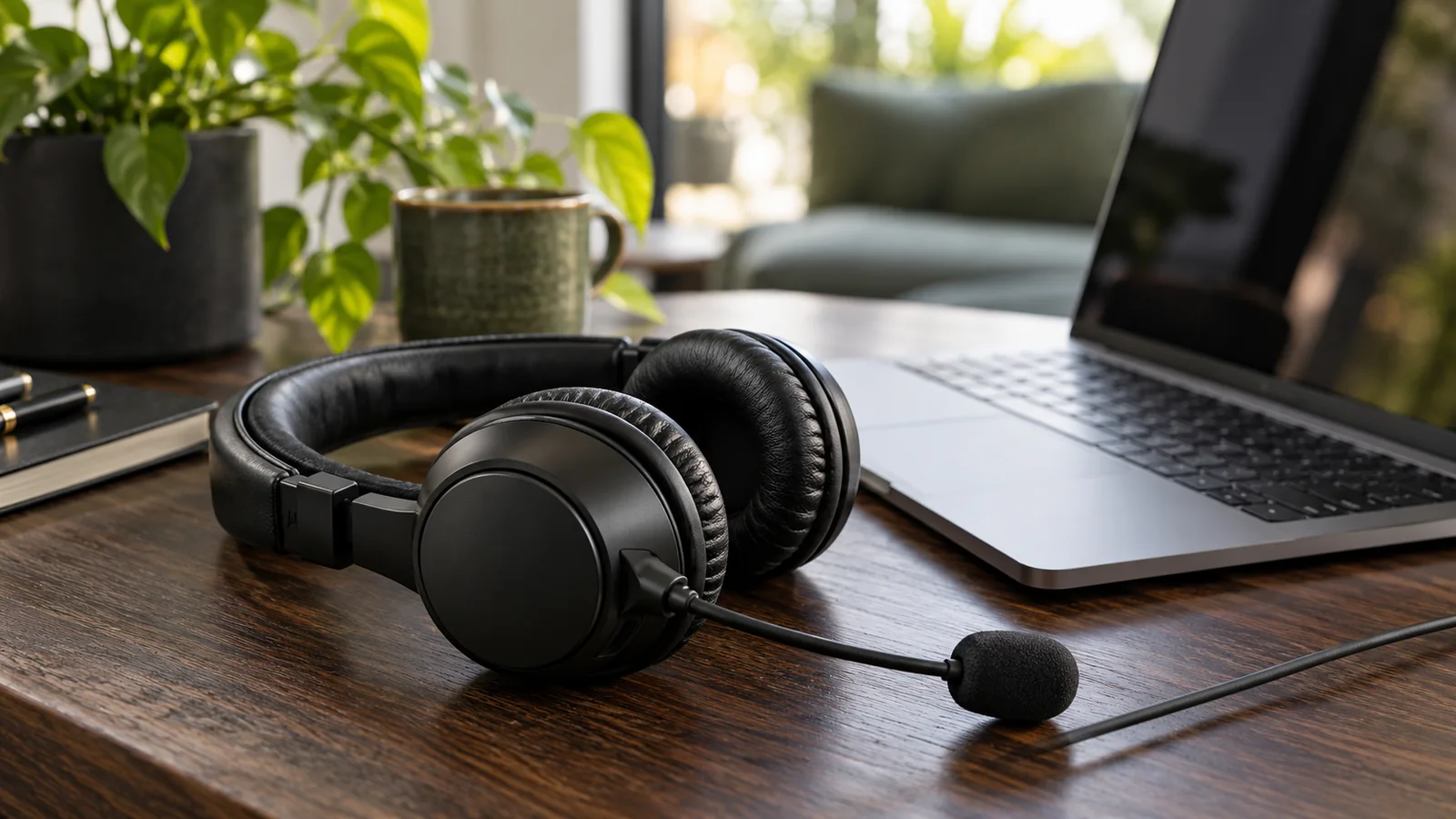
IPTV Technical Support Diagnostic Desk: Headphones and laptop on wood desk.
Diagnostic workstation setup. Technical assistance is available 24/7 on WhatsApp.

Is Playback Failing on Only One Specific Channel?

When an IPTV stream fails on a single channel or video title, test two alternative feeds on the same screen one at a time. If other channels stream smoothly without interruption, that immediately isolates the issue to the source broadcast or specific stream transcoder. Changing your entire Wi-Fi configuration or resetting player credentials is not necessary in this scenario.

Check back on the original channel after a few minutes to see if the broadcast restored. Inform our support engineers of the precise channel name and whether the issue is a black screen, audio desync, or continuous reloading loop. If all channels demonstrate identical stalls, proceed to isolating your local network and player application.

Benchmark Connection Reliability Without Changing Everything at Once

If your television streams buffer, run a broadband test on the television itself rather than relying solely on your mobile handset. A strong smartphone signal in the kitchen does not verify that an Amazon Firestick tucked behind a television chassis receives clean Wi-Fi throughput. If your television or set-top gear supports an Ethernet port, connect a direct wired cable to compare playback against wireless reception.

Conducting a quick test on a secondary verified device can also assist. Always terminate playback on your first screen before testing the second, adhering to single-connection plan limits. If a feed functions flawlessly on your tablet but buffers on your TV box, you can focus attention on TV player decoding and local Wi-Fi strength without needlessly re-installing applications.

Identify What Environment Changes Preceded the Issue

If streams suddenly encounter buffering after days of stable viewing, identify your last successful session. Recall whether your router received a firmware update, player settings were altered, or local ISP evening peak traffic commenced. Correlating the onset of buffering with environment adjustments is critical for fast resolution.

  • Note the date, exact time, and timezone of stream interruptions so technicians can trace server telemetry.
  • Differentiate test outcomes: for example, 1080p channels operate normally while specific 4K 60FPS feeds stutter.
  • If attaching screenshots, inspect screen margins and browser address bars. Crop out login tokens, M3U keys, and personal billing details.
WhatsApp