
STEP BY STEP

IPTV Setup Guide.

IPTV onboarding begins with a compatible device and your preferred player app. Enter your M3U playlist or Xtream Codes details and test playback. If you have not selected a player yet, explore our supported apps and devices.

Before IPTV Installation.

  • Device & Internet Connection

    Know your device model and operating system. Ensure a stable broadband internet connection is active on your screen.

  • Compatible Application

    Verify player app name and official publisher before installation. Check if any standalone player fee applies.

  • Your Subscription Details

    Keep your M3U link or Xtream Codes API credentials ready. On MAG or Formuler boxes, follow provided MAC portal instructions.

HOW TO PROCEED

IPTV Setup in Six Steps.

IPTV setup proceeds slightly differently across various player applications. Always follow your app's interface and the exact credentials issued with your subscription.

  1. 01

    Verify Your Connection

    Open any existing video app on your device to confirm bandwidth. If network speeds lag, resolve connection issues before modifying player settings.

  2. 02

    Install the Right Player

    Download your app from the official platform store (Google Play, Amazon Appstore, Apple App Store). Avoid unknown third-party APK sources.

  3. 03

    Enter Subscription Details

    Select M3U playlist or Xtream Codes API depending on your app's support. Copy credentials accurately and check for accidental spaces.

  4. 04

    Allow Data to Load

    Wait for the app to finish importing the channel catalog and Electronic Program Guide (EPG). Avoid repeatedly refreshing during sync.

  5. 05

    Test Stream Playback

    Launch a live stream and inspect 4K/FHD picture and audio clarity. Switch across several channels. If an issue is isolated to one channel, do not reset global settings.

  6. 06

    Customize Your Layout

    Build your favorites list, test subtitle tracks, and verify local EPG timezone. Remember: standard plans include 1 active connection at a time.

TWO COMMON LOGIN FORMATS

M3U Playlist or Xtream API?

M3U and Xtream are alternative methods for connecting your plan to a player, not different content tiers. Use only credentials supplied with your plan. Never share logins in open forums.

M3U Playlist URL

  1. Open the player screen for adding a playlist or URL.
  2. Give your playlist an easily identifiable name.
  3. Paste your complete M3U link provided upon order.
  4. Save and wait for channel categories to populate.

Your M3U URL contains encrypted authentication tokens. Treat it securely, exactly like a password.
Xtream Codes API

  1. Select Xtream Codes or API login inside your player.
  2. Assign a name to the connection if prompted.
  3. Enter Server URL, Username, and Password in their dedicated fields.
  4. Save and allow live TV and VOD libraries to synchronize.

Server URL and full M3U links are distinct fields. Do not paste the entire M3U link into the Server URL box.

MAG, Formuler & Portals

On dedicated set-top boxes, IPTV activation is handled through a hardware MAC portal or built-in system menu. Follow device-specific portal instructions.

If settings differ from our guide, share your exact box model with WhatsApp support. Never guess portal URLs or alter unknown parameters.

IF SOMETHING STALLS

Troubleshooting Common Setup Roadblocks.

Player does not accept login credentials.

Confirm that your chosen login type matches your credentials (Xtream API vs. M3U). Verify exact spelling, capitalization, and check for accidental spaces at the ends. If errors persist, contact support with the exact error message. Never send raw passwords in unencrypted chats.

Channel directory does not load.

Check your internet connection, then force-close the app completely. Relaunch and use the player's internal 'Update Playlist' function. Avoid deleting your subscription profile or factory resetting your device as a first measure.

I want to switch to a different device.

Standard subscriptions include one active simultaneous stream. Stop playback on the first device before launching on a new screen. If you need multi-room streaming, contact WhatsApp support for 2-device and 3-device plan options.

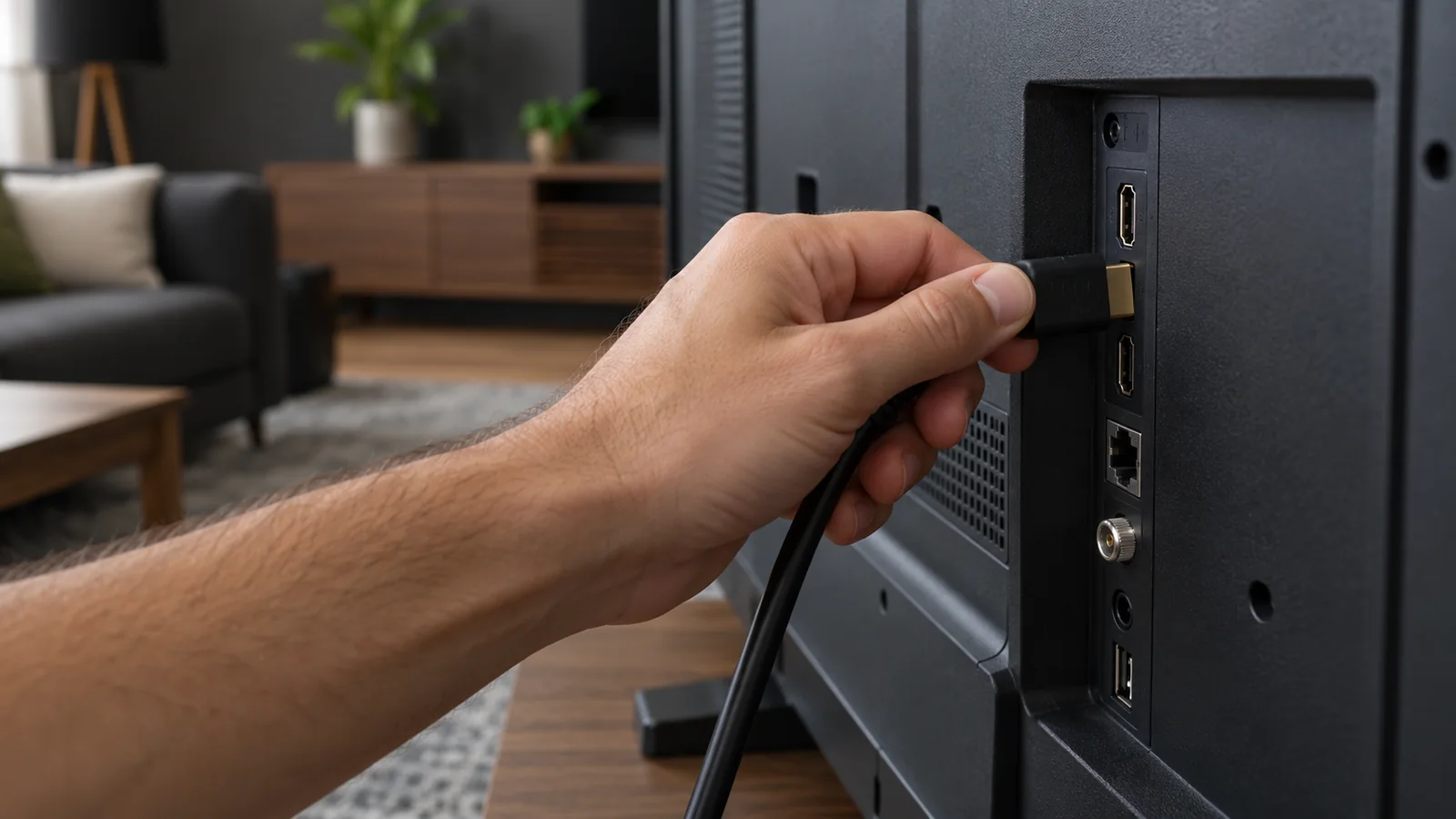
IPTV Setup: Connecting HDMI cable to streaming TV.
A dedicated streaming media stick connects directly to your TV's HDMI port. Smart TV applications do not require external HDMI dongles.

IPTV Setup: Conducting Your First Playback Test

IPTV onboarding doesn't conclude when the channel list appears. A downloaded list confirms the player connected to the server, but it does not test video pipeline throughput. Run a relaxed first test before organizing favorite folders or tweaking advanced rendering settings. This makes it simple to pinpoint where any potential hitch originates.

  • Open two different channels back-to-back and confirm crisp picture and clean audio on both. Avoid running a simultaneous stream on another screen.
  • Return to the main category menu and launch your chosen channel again. Verify that you can exit playback cleanly.
  • Close and reopen the player application once. Confirm that your saved subscription remains stored and that initial playback was not a one-time cached session.

EPG Program Guide, Audio Feeds, and Subtitle Tracks

The Electronic Program Guide (EPG) and live video streaming are distinct network streams. If a channel plays cleanly but schedule metadata is empty, do not re-enter credentials from scratch. First, trigger the player's EPG refresh button. If programs consistently display the wrong hours, compare your device's system clock and timezone with local time before adjusting timezone offsets in the app.

Select alternate audio tracks and closed captions from the player's on-screen playback menu. Not every broadcast feed carries multiple audio languages. A missing audio track on a single international channel does not indicate an installation error. Test another feed and report specific channels to support if an anomaly persists.

IPTV Setup: Safely Storing Your Access Credentials

Always enter your login details on your own private hardware. Never share screenshots of login fields in community forums or unencrypted screen shares. If your Smart TV app directs you to an external web portal to upload a playlist, verify the developer's official domain before typing credentials.

If setup encounters an authentication roadblock, describe the issue without exposing your secret password: provide the login type selected, field names, and the exact error code shown. In our Troubleshooting Guide, you will find step-by-step diagnostic sequences for instances where playlists load but playback fails to start.

WhatsApp